Wavelet: headphone equalizer
- 3.8
- Rating
- 5.00M
- Installs
- Free
- Price

 Analysis by App-foxy
If you have ever switched between headphones and felt that your music suddenly lost its bass, sounded too sharp, or became strangely quiet, Wavelet: headphone equalizer is the kind of Android app I would try before replacing the headphones. It is a free music and audio tool from pittvandewitt that works as a system-wide equalizer, with headphone AutoEq profiles, bass adjustment, and other sound controls. I found its main appeal in the way it sits between “leave the sound completely untouched” and “spend an evening learning complicated audio software.”
The app is not a music player, streaming service, or collection of songs. It changes the way compatible audio is processed while you listen elsewhere. That distinction matters because the experience depends partly on the player, headphones, and Android setup you already use. When everything lines up, the improvement can be immediate. When it does not, the first few minutes can feel confusing rather than magical.
Wavelet is free to install and is rated for Everyone. It has been available since May 11, 2020, and version 26.05 is the current release. Its average rating is 3.8 from around nineteen thousand ratings, while the app has passed five million installs. Those figures suggest a substantial audience, but they also set a realistic expectation: this is a useful specialist tool, not an automatic guarantee that every phone and every audio app will respond perfectly.
You May Also Like

 Blood Strike: 2.5 Anniversary
Blood Strike’s Loadouts Turn Every Drop Into a Tactical Gamble
A close look at Blood Strike’s custom loadouts: how fast access to signature weapons reshapes its battle royale rhythm, rewards preparation, and narrows the gap between fights.

 Pandora - Music & Podcasts
Pandora’s Music Is Easy to Start, but Harder to Recover
Pandora’s strength is its low-effort path from a seed to a station. Its weak spot is how much confidence it asks you to place in connection, setup, and quiet recovery.

 8 Ball Pool
 Is Built on Rivalries, Rematches, and Routine
A close look at the rivalries, rematches, shared routines, and unanswered safety questions that turn a quick pool match into a persistent mobile community.

 Samsung Music
’s Quiet Strength Is Playing What You Already Own
Its reach comes less from spectacle than from dependable access to a personal library. That simplicity is both the app’s strongest retention engine and its ceiling.

 AccuWeather: Weather Radar
AccuWeather Review: A Quick, Clear Forecast for Everyday Decisions
For everyday plans, the best forecast is the one you can understand quickly. AccuWeather makes rain timing, radar, and local conditions easy to act on, with a few trade-offs.

 Hill Climb Racing
Why Hill Climb Racing Still Turns Crashes Into One More Run
A tiny car, a bumpy hill and one more upgrade: Hill Climb Racing keeps resurfacing because its simple chaos makes every near-miss feel personal.
More From Our News Desk



Getting from installation to a better first listen
I start with headphones connected and a familiar track already playing, then make one small change and listen before adding anything else. That simple order helps separate a useful correction from an effect that merely sounds louder at first. Once I know whether the audio session responds as expected, I can move on to choosing a headphone profile and judging the result across more than one kind of audio.
What to expect before changing anything
My first recommendation is to listen to a familiar track before touching the controls. Choose something you know well, preferably with vocals, drums, and a quiet section. The point is not to find the loudest possible result. It is to notice whether the balance changes in a way you actually prefer. A louder signal can seem better for a few seconds even when it is less clear over a full song.
The system-wide design is the important part. Instead of adjusting sound only inside one music player, Wavelet aims to apply its processing across the audio experience. That makes it more convenient than repeatedly rebuilding an equalizer preset in different apps. It also means the app has to interact with Android audio behavior, and that behavior is not always identical between phones or playback apps.
For a first-time user, the safest approach is to treat the app as a listening tool rather than a collection of switches. Start with one adjustment, compare it with the original sound, and keep only changes that remain pleasant after several minutes. If you activate every available control at once, you lose the ability to tell which setting helped and which one introduced harshness or muddiness.
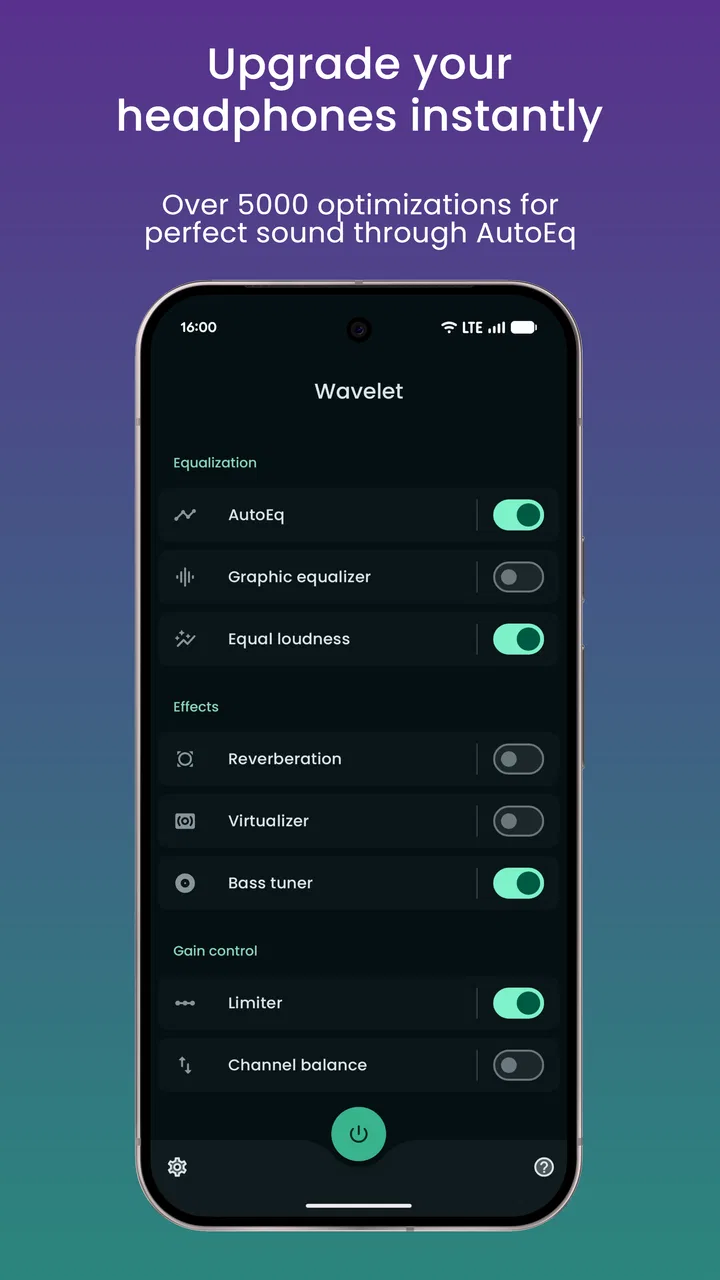
AutoEq is the feature I would investigate first if my headphones are supported. Its purpose is to apply a headphone-specific correction rather than asking me to guess the right frequency bands manually. That is a more approachable starting point than dragging sliders until a song sounds exciting. It is also a reminder that a profile is a starting point, not a personal law: fit, ear shape, listening volume, and taste still affect the result.
Setting up the app without overcomplicating it
After installation, I would open Wavelet with the headphones already connected and the music app ready in the background. This makes it easier to see whether the audio session is being recognized. If nothing seems to happen, I would start playback rather than immediately changing settings. Some Android audio tools only become meaningful once an active session exists.
The next practical step is choosing the headphones or earphones you actually use. Do not select a similar-looking model merely because it appears close in name. A correction intended for another product may push the sound in the wrong direction. If your exact headphones do not have a profile, manual adjustment can still be useful, but I would keep the changes modest and judge them with several recordings rather than one bass-heavy track.
For the first pass, I would leave advanced processing alone and focus on the most obvious correction available for the selected headphones. Play a familiar song, turn the processing off and on, and listen for vocals, cymbals, and bass notes separately. This simple comparison is more reliable than watching the controls move. If the difference is subtle, that is not necessarily a problem; accurate correction does not need to produce a dramatic effect.
One useful habit is to test at the volume you normally use. At very low volume, bass may appear weaker than it really is. At very high volume, extra bass can become tiring and treble can feel sharper than it will during ordinary listening. I also avoid judging the app while changing songs constantly. Give each setting enough uninterrupted time to reveal whether it improves the whole listening session.
Your first meaningful success: one controlled improvement
A successful first action is not creating a complicated preset. It is finding one setting that solves a real annoyance. For example, I might use AutoEq to make a pair of bright earphones less tiring during spoken podcasts, then compare the same setting with a familiar album. If speech becomes easier to follow without making music dull, I have a useful result that I can recognize outside the settings screen.
Another realistic example is a commute. I may use compact headphones that sound thin on public transport, where background noise masks lower frequencies. Rather than pushing every control upward, I would make a restrained bass adjustment and listen to a playlist containing both acoustic tracks and electronic music. If the electronic tracks gain weight but acoustic instruments remain distinct, the change is doing something helpful. If voices become cloudy, I would reduce it immediately.
This is where the app feels more practical than a basic volume booster. A volume increase makes everything louder, including unwanted sharpness and background noise. Equalization can change the balance instead. It cannot create detail that the headphones never reproduce, but it can make the existing presentation more comfortable for a particular listener.
I also like using a before-and-after pause. I turn the processing off for a short moment, then back on without looking at the controls. That reduces the expectation effect caused by seeing a slider move. If I can describe the improvement in ordinary language—clearer speech, less piercing treble, fuller but not loose bass—I am more likely to keep the setting. If the only description is “different,” I usually leave it off.
Why the first result may not appear immediately
The most common confusion is assuming that an equalizer must affect every sound from the phone at all times. In practice, Android audio sessions and individual players can behave differently. A setting may seem inactive until playback begins, or one app may react differently from another. When testing, I would use a conventional music or podcast player first, keep the headphones connected, and avoid drawing conclusions from a single failed attempt.
Bluetooth can add another layer of uncertainty because the phone and headphones may already be applying their own sound processing. If the headphones have a companion app with an equalizer, I would avoid making strong changes in both places at once. Two aggressive corrections can produce a result that is boomy, thin, or harsh, and it becomes difficult to identify the source. I prefer to make Wavelet the main adjustment point and keep the headphone manufacturer’s profile neutral while testing.
There is also a difference between a profile and a personal preference. AutoEq may make a headphone closer to a target balance, but “closer” does not automatically mean “more enjoyable.” Someone who likes strong bass may prefer a gentle bass lift after correction. Someone who mainly listens to classical music may want a flatter result. I would not reject the app because the first profile sounds too restrained; I would use it as a clean base and then make one small personal change.
Another mistake is judging the app with audio that is already heavily processed. Some streaming services, players, and headphone apps offer loudness normalization, spatial effects, bass modes, or custom presets. Combining all of them can make the sound less predictable. For a fair test, I would temporarily simplify the chain, compare Wavelet with its main processing disabled, and then reintroduce other effects one at a time.
If an adjustment sounds distorted, I would lower the boost rather than raising the phone’s volume. Boosting a frequency range can leave less headroom for the rest of the signal, especially in recordings that are already loud. A smaller change often sounds cleaner and is easier to tolerate over a long listening session. This is one of the less obvious trade-offs: the most dramatic setting is rarely the most useful daily setting.
Making the controls work for different listening situations
My preferred workflow is to think in situations instead of chasing one perfect sound. The setting that works for a bass-driven playlist may be wrong for a video call or a spoken audiobook. I would keep a conservative everyday balance, then adjust only when a clear problem appears. That prevents the familiar cycle of constantly tuning the equalizer and never actually listening.
For podcasts and audiobooks, intelligibility matters more than impact. A little less low-end can reduce the sense that voices are boxed in, while excessive treble can make sibilants tiring. For music, I would use full-range tracks to check whether the adjustment preserves space between instruments. For videos, dialogue is the deciding factor, because a setting that makes background music exciting can make speech less comfortable.
One advanced but practical tip is to compare several recordings from different production styles. A setting that sounds excellent on a modern, compressed pop track may exaggerate older recordings or acoustic material. If the change survives three very different examples, it is more likely to be a genuine improvement to the headphones rather than a lucky match for one mix.
I would also remember that equalization cannot correct every physical problem. A poor seal on in-ear headphones can remove bass regardless of the software setting. Loose fit, damaged cables, low-quality Bluetooth transmission, or a recording with clipping will not be repaired by moving sliders. Before blaming Wavelet, I would reseat the earphones, try another track, and check whether the same issue appears with processing disabled.
Where this app is stronger than ordinary alternatives
The usual alternative is the equalizer built into a music player. That option is perfectly adequate if I listen in one app and only want a few simple adjustments. It is often easier to understand because the controls are close to the music. Wavelet becomes more attractive when I move between music, podcasts, video, and other audio sources and want a consistent approach rather than separate presets everywhere.
A phone’s built-in sound modes are another alternative. They may offer a quick bass boost or a handful of named profiles, but they usually provide less control over the relationship between particular headphones and the final sound. Wavelet’s headphone-focused approach is more useful when I care about matching a specific pair rather than selecting a broad mood such as “rock” or “movie.”
Dedicated manufacturer apps can still be the better choice when they control hardware-specific features, firmware, spatial audio, or an exact product profile. I would not replace those tools automatically. Instead, I would test whether their equalizer and Wavelet are duplicating the same job. If the manufacturer app already gives me the sound I want and adds device controls I need, adding another processing layer may create more confusion than value.
Manual equalizers remain appealing to experienced listeners who enjoy shaping sound from scratch. Wavelet is not necessarily better for that person; its advantage is reducing the guesswork around headphone correction. I see it as a middle ground: more purposeful than a single generic bass button, but less intimidating than building a full measurement-based setup manually.
Limitations I noticed before recommending it
The first limitation is dependence on the Android audio environment. Because Wavelet is intended to work system-wide, its behavior is not entirely isolated from the phone and player. A user who expects one identical result from every audio source may become frustrated. I would recommend it more confidently to someone willing to perform a short test with their main apps than to someone who wants a guaranteed one-tap change.
The second limitation is that the app invites experimentation, and experimentation can become excessive. More controls do not automatically mean better sound. New users may raise bass, add loudness, and brighten treble together, then mistake a louder and more aggressive presentation for improved quality. The app would be easier for absolute beginners if every adjustment came with a clear explanation of its trade-off, so I would approach it slowly.
There may also be a cost boundary for people who want every available option. The app itself is free, while in-app purchases are listed at $4.99 per item. I would begin with the free experience and decide only after confirming that the basic workflow suits my headphones and listening apps. That protects against paying for controls that do not solve my actual problem.
Finally, people who are happy with their current sound should skip it. If your headphones already feel balanced, your player’s equalizer does everything you need, and you rarely change audio sources, Wavelet may add another layer without adding meaningful benefit. It is most worthwhile when you have a repeatable complaint—uneven headphone balance, tiring treble, weak bass, or inconsistent sound between apps—and want a more deliberate solution.
Who I would recommend it to
I would recommend Wavelet to Android listeners who use several audio apps, own more than one pair of headphones, or want to explore headphone correction without starting with complex audio software. It is especially approachable for someone who can describe a sound problem but does not know which frequency to change. Starting with the relevant headphone profile gives that person a sensible reference point.
I would be more cautious with users who mainly want louder audio, expect it to repair damaged recordings, or dislike comparing settings. It is not a replacement for better-fitting headphones, a stable Bluetooth connection, or a well-recorded source. It also is not the right tool for someone who wants a music library, streaming catalog, or built-in playback experience; its role is audio processing rather than content discovery.
For listeners with hearing differences between ears, the app may be worth exploring carefully, but I would avoid presenting a generic profile as a medical solution. Personal comfort should guide the changes, and extreme boosts are not a safe substitute for professional advice. The practical goal is a more enjoyable and understandable listening balance, not a promise to correct hearing itself.
My next-step routine after the first success
Once I find a setting that works, I stop changing things for a day or two. That pause reveals whether the improvement is genuinely useful or merely novel. I listen to speech, quiet music, busy music, and something I know well. If the sound remains comfortable across those situations, I keep the configuration as my everyday starting point.
After that, I make only one deliberate refinement. I might reduce a bass lift that becomes tiring during long sessions, or soften a treble change that makes certain vocals too sharp. I write down the reason in my own words rather than trying to remember slider positions. “Less fatigue on spoken audio” is a better target than “make everything warmer,” because it tells me when the adjustment has done its job.
I would also retest after changing headphones. A setting that is excellent for one pair should not be assumed to suit another, even if both are from the same brand. The headphone profile and the physical fit are part of the result. This is one of the app’s biggest strengths and one of its easiest traps: personalization is valuable, but it means there is no universal preset I can recommend to everyone.
Overall, I see Wavelet as a thoughtful free entry point into headphone equalization. It offers a clearer path than random slider movements, especially when AutoEq supports the headphones being used, while still leaving room for personal taste. The experience is not completely frictionless because Android audio compatibility and overlapping sound effects can complicate testing. Still, if you begin with a familiar track, make one change at a time, and judge comfort rather than volume, you can reach a useful result without becoming an audio hobbyist.
My honest recommendation is to try it when your headphones have a specific sound problem, not simply because more processing sounds impressive. For me, its value comes from turning a vague complaint—“these earphones are tiring” or “this pair sounds thin”—into a controlled experiment with a practical daily outcome. If that is the kind of improvement you want, Wavelet is worth exploring; if your current setup already sounds right, leaving it alone may be the better choice.
FAQs for Wavelet: headphone equalizer
01What is Wavelet: headphone equalizer used for?
Wavelet is an Android audio equalizer designed primarily for improving headphone sound. It includes automatic correction profiles for thousands of headphone models, along with manual equalizer controls and additional effects. After installation, it can work with supported music and media apps to adjust the sound output, helping users fine-tune bass, clarity, loudness, and overall balance without changing the original audio files.
02Does Wavelet support my headphones or earbuds?
Wavelet includes a large database of headphone and earbud profiles, so many popular wired and Bluetooth models are supported. You can search for your device inside the app and apply its recommended profile. If your exact model is unavailable, you can still use the graphic equalizer or other manual tools, although the result may require some personal adjustment to sound natural.
03Is Wavelet: headphone equalizer free to download?
Wavelet can generally be downloaded and used without paying for its basic equalizer functions, but some advanced features may require an in-app purchase or premium upgrade. The available options can vary depending on the Android version and app release. It is worth checking the current Google Play listing before downloading if you specifically want features such as extra effects or advanced customization.
04Does Wavelet work with every music or streaming application?
Wavelet works with many Android music, video, and streaming applications, but compatibility is not identical across every player. Some apps, audio paths, exclusive modes, or Bluetooth configurations may prevent the equalizer from processing sound correctly. If you hear no difference, check Wavelet’s session status, disable conflicting audio enhancers, and test another supported player to determine whether the issue is app-specific.
05Can Wavelet damage headphones or make audio sound worse?
Wavelet is generally safe when used with sensible settings, but extreme boosts can cause distortion, clipping, or uncomfortable listening levels. Automatic headphone profiles are usually a good starting point, while manual adjustments should be made gradually. Reducing excessive bass or treble is often safer than applying large boosts. Always keep the volume at a comfortable level, especially during long listening sessions.
Pros
- Automatic profiles support many popular headphone models.
- Graphic and parametric equalizers offer precise sound customization.
- Per-app audio settings help tailor music
- video
- and gaming playback.
- Loudness and bass controls can improve weaker or quieter headphones.
- The interface is clean
- lightweight
- and easy to navigate.
Cons
- Some advanced features require the paid Wavelet upgrade.
- Results vary depending on your headphones and source audio quality.
- Certain effects may introduce distortion at aggressive settings.
- Per-app processing may not work consistently with every audio player.
- Battery impact can increase when continuous audio processing is enabled.

Wavelet: headphone equalizer
Gallery